
Fun Claude Code Commands: Side Questions, Rewind, Loops, and Terminal Extras
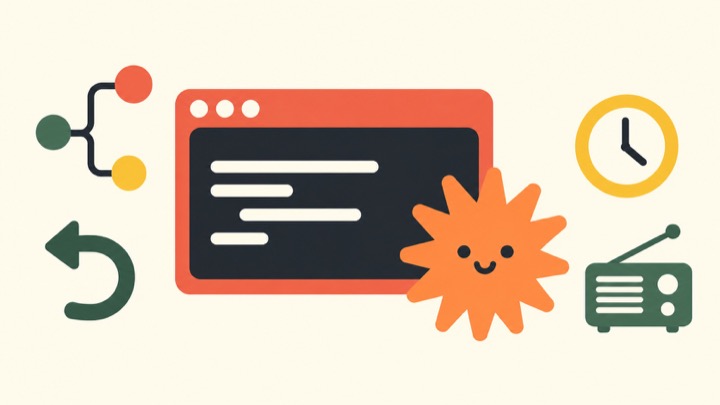
Claude Code has some surprisingly fun commands. Alongside writing code and fixing bugs, you can ask a side question, explore another conversation branch, rewind an attempt, or open a radio station while you work.
This guide pairs useful slash commands with situations where they help. For a quick first taste, try /btw, /rewind, and /radio: a question on the side, a chance to revisit an attempt, and a change of atmosphere.
Where Do You Type These Commands?
Start Claude Code from a terminal in your project directory:
1 | claude |
Then type commands such as /btw and /loop inside the conversation. They do not belong directly in your regular shell. Type / to browse available entries, or /help for help.
The menu mixes built-in commands, bundled skills, and installed plugins. Availability depends on your version, platform, authentication, and plan. This guide follows official documentation checked on October 14, 2026. The examples illustrate usage; they have not all been tested on a live installation. Check your own interface for availability. Official command reference
/btw: Ask a Side Question While Work Continues
Claude is changing the login flow, and you want to recall an earlier decision:
1 | /btw Why did we choose cookies instead of localStorage for login state? |
/btw answers in a separate overlay without interrupting the main task or adding the exchange to the main conversation history. It works well for recalling a decision or asking about information Claude has already seen.
Side questions have no tool access. They cannot read a new file, search the web, or change code. Put those requests into the main conversation. Side-question documentation
/rewind: Return to an Earlier Checkpoint
If a refactor has taken an unhelpful turn, open the checkpoint menu:
1 | /rewind |
Select an earlier message, then choose whether to restore the conversation, tracked code edits, or both. The menu also offers summary actions that keep your current files. With an empty prompt, pressing Esc twice opens the same menu.
File changes made through Bash are not tracked by checkpoints. Rewinding also cannot undo external actions such as a deployment or a database write. Keep Git history for important changes. Checkpoint documentation
/branch: Explore Another Direction
You have discussed a shopping-cart design and want to compare another approach. Name the original session, then branch the conversation:
1 | /rename cart-original |
Explore the alternative in the new conversation, then use /resume to return to the original. This works well for design choices, debugging hypotheses, and writing angles.
A conversation branch does not isolate file changes or create a Git branch. Arrange separate Git branches and worktrees when both approaches will edit code. /fork instead keeps you here and sends a copy to background work; its behavior has changed across versions. Session management documentation
/context and /compact: Check What Your Conversation Carries
Use /context to inspect context usage, then /compact to summarize a long conversation. Tell the summary what matters:
1 | /context |
This is useful during a long debugging session. A focused handoff is easier to continue than pages of repeated logs. Summaries omit details, so keep essential specifications in project documents. Context and compaction reference
/insights: Ask Claude How You Use Claude
Want a picture of your working habits? Run:
1 | /insights |
It analyzes recent sessions on this machine and writes an HTML report about your work, friction points, and possible improvements. The latest report lives at ~/.claude/usage-data/report.html.
For limits and activity statistics, use /usage. The current reference lists /cost and /stats as aliases; /stats opens the Stats tab. The /insights analysis consumes plan or API usage, and it does not include every conversation from your other devices. Usage-report documentation
/loop: Check Progress at an Interval
While waiting for CI, give Claude a narrow polling task:
1 | /loop 5m Check CI for the current branch. Report only a status change or something that needs my attention. Keep this read-only. |
The prompt runs repeatedly at the requested interval. To cancel, ask Claude to list scheduled tasks and delete the relevant one.
Tasks fire only while Claude Code is running and idle, and repeated checks consume usage. This suits polling during a working session; assess cloud Routines or Desktop scheduled tasks for durable scheduling. Supply the interval and prompt explicitly: newer versions may run a built-in maintenance prompt when you enter bare /loop. Scheduling documentation
/remote-control and /voice: Change Devices or Input Methods
/remote-control: Continue a Local Session From Your Phone
Enter /remote-control in the current conversation and follow the connection prompts. You can then continue through the Claude mobile app or a browser.
Execution stays on your computer, so the computer must remain on and Claude Code must keep running. Remote Control needs an eligible Claude subscription login; API-key authentication is unsupported. Team and Enterprise organizations may need an administrator to enable it. Remote Control documentation
/voice: Say the Request, Then Edit the Text
/voice toggles dictation. /voice hold and /voice tap select hold-to-record or tap-to-toggle. In the default mode, hold Space while speaking; the transcription appears in your prompt.
This works well for describing a problem before typing exact filenames. You can edit the text before sending. It needs a Claude.ai account and a local microphone, and recorded audio goes to Anthropic’s servers for transcription. Voice dictation documentation
Terminal Extras: Colors, Radio, Lessons, and Stickers
These are good commands to explore once the basics feel familiar:
| Command | What it does |
|---|---|
| /color purple | Makes this session’s prompt bar purple |
| /theme | Opens the theme picker |
| /radio | Opens Claude FM lo-fi radio in your browser |
| /powerup | Introduces features through short interactive lessons and animated demos |
| /stickers | Starts the Claude Code sticker-ordering feature |
Try different prompt colors when juggling terminals, or radio while writing documentation. Check the current ordering page for sticker prices and shipping terms. Official command list
/copy and /export: Keep a Useful Answer
Use /copy for the latest reply and /export for the conversation:
1 | /copy |
Copying suits a short passage; exporting preserves the discussion. Check for private or sensitive project information before sharing an export. Copy and export reference
Useful Combinations to Start With
Pick a sequence that matches your work:
- Compare designs: /plan → /branch. Discuss the design, then explore an alternative. Arrange file isolation before implementation.
- Debug for longer: /btw → /context → /compact. Ask small questions on the side and preserve key findings as context fills.
- Wait for CI: /loop 5m with a read-only prompt. Specify the frequency, reporting conditions, and how to stop.
- Reflect on habits: /insights → /copy. Read the report, then turn useful changes into a short note.
The helpful habit is knowing when to ask, when to summarize, and when to preserve a route back to an earlier idea.
Why Is a Command Missing on My Installation?
Use /status to check your version and authentication, then compare the documentation. Some commands depend on a plan, platform, or plugin; others are hidden from the menu.
/vim was removed in v2.1.92. Switch Vim editing through /config → Editor mode instead. Older guides may also describe /cost, /stats, and /usage differently, so check the current reference. Command reference, Vim editor mode
For working across multiple sessions, continue with this blog’s Claude Code cross-session messaging guide.


