Five Aseprite Extensions and Scripts for Pixel Art Workflows

Creating pixel art for a game involves more than drawing characters. Finding palettes, cleaning up outlines, preparing isometric guides, and checking animation or background seams can take time away from the artwork itself.
Aseprite extensions and Lua scripts can handle some of that repetitive work. This guide covers five tools, what each is useful for, and how to fit them into an asset workflow. The images show interfaces and effects published by their developers, with credits in the captions.
Install an extension package or a Lua script
An .aseprite-extension file is a packaged extension. Drag it into Aseprite to install it, or open Edit → Preferences → Extensions, choose Add Extension, and check that it is enabled. The official extensions guide explains the installation options.
A .lua file is a script. Open File → Scripts → Open Scripts Folder, copy the file there, and use File → Scripts → Rescan Scripts Folder. You can then run it from File → Scripts. See the official scripting guide for the folder and refresh procedure.
Use a purchased copy or a build you compiled yourself; the trial does not support these extension features. If you need to set up the editor first, follow the Aseprite installation and PixelLab guide.
Lospec Palette Importer: bring a palette into the editor

John Riggles’ Lospec Palette Importer lets you find a Lospec palette by name, preview it, and save it. It also offers random palettes for inspiration. The project uses the MIT license and offers a name-your-own-price download.
After installation, select Import Palette from Lospec in the menu above the palette. Try one palette on a character, prop, and background before adopting it across the project.
Network access and saving palettes may require permissions. Check the developer’s platform requirements; Linux is not officially supported, and some features need separate verification.
Magic Pencil: automate outlines and pixel operations

Kacper Woźniak’s Magic Pencil adds drawing modes through Edit → Magic Pencil. It is available as a name-your-own-price download.
- Brush Outline adds an outline as you draw; Graffiti adds a spray effect.
- Lift moves painted-over pixels to a new layer; Merge copies and combines relevant visible pixels.
- Shift changes color properties, while Indexed Mode keeps color changes within the palette.
Try the modes on one character or prop before applying them across an asset set. Compare the result with your normal cleanup process.
Isometric Guidelines: establish a consistent grid

Noesteryo’s Isometric Guidelines is a Lua script for setting grid dimensions, optional walls, and separate colors for the floor and walls. The download uses name-your-own-price pricing.
The script creates a new sprite. Check the grid there before bringing the guides into your asset project. Agree on perspective rules before drawing a set of floors or buildings, so the pieces share the same proportions.
Wave Warp: preview a distortion before generating frames
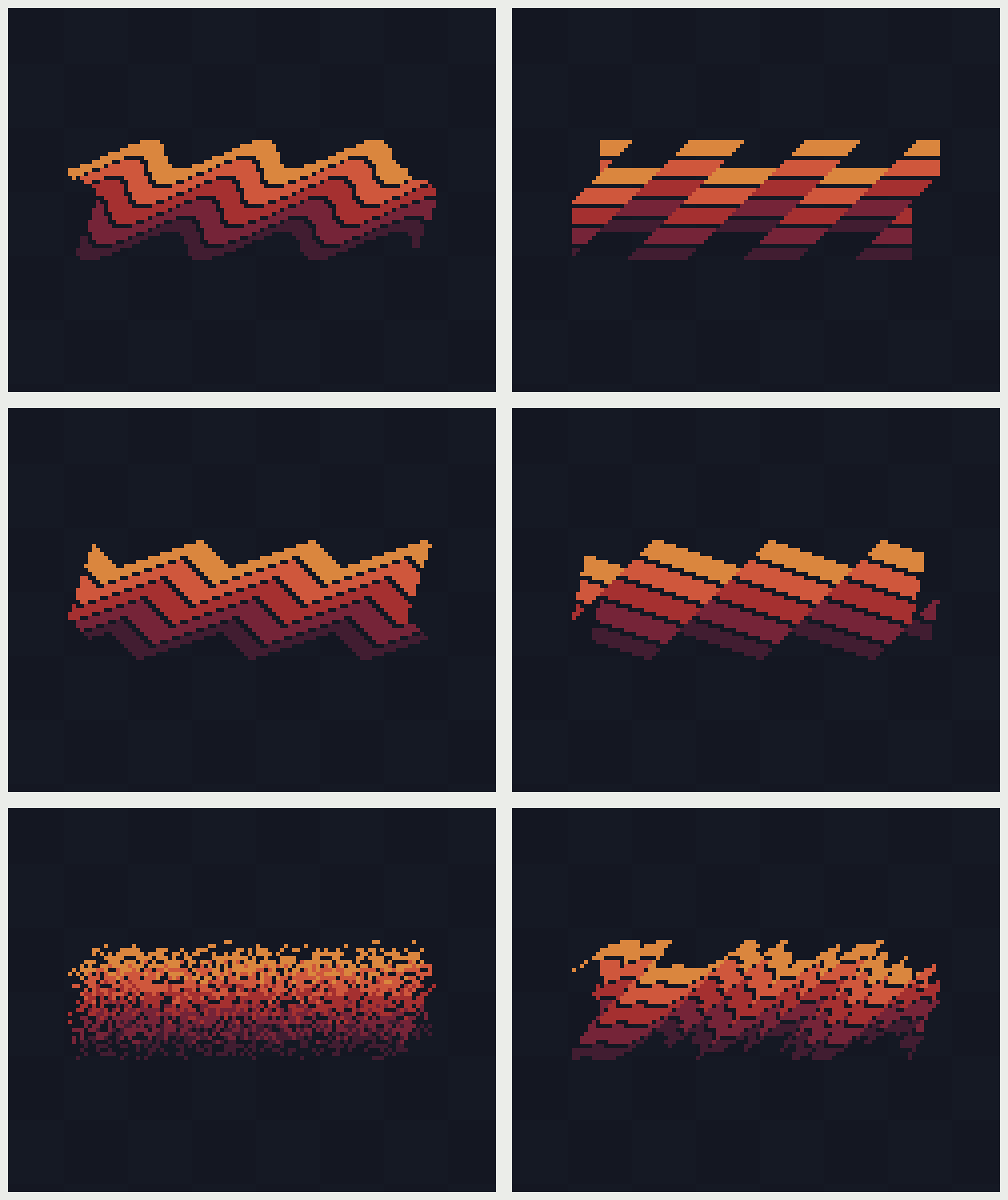
Devkidd’s Wave Warp creates wave distortions across multiple frames. You can adjust wave shapes, amplitude, direction, and speed, and anchor parts of the image with pinning. It suits experiments with flags, water, and heat effects.
Start with a simple asset and a small frame count while adjusting the parameters. After generating the animation, check the join between the last and first frames and inspect the image edges. A generated sequence still needs a loop check.
The listed regular price is US$5. Check the developer’s page for current discounts.
Parallixel: check a scrolling background before export
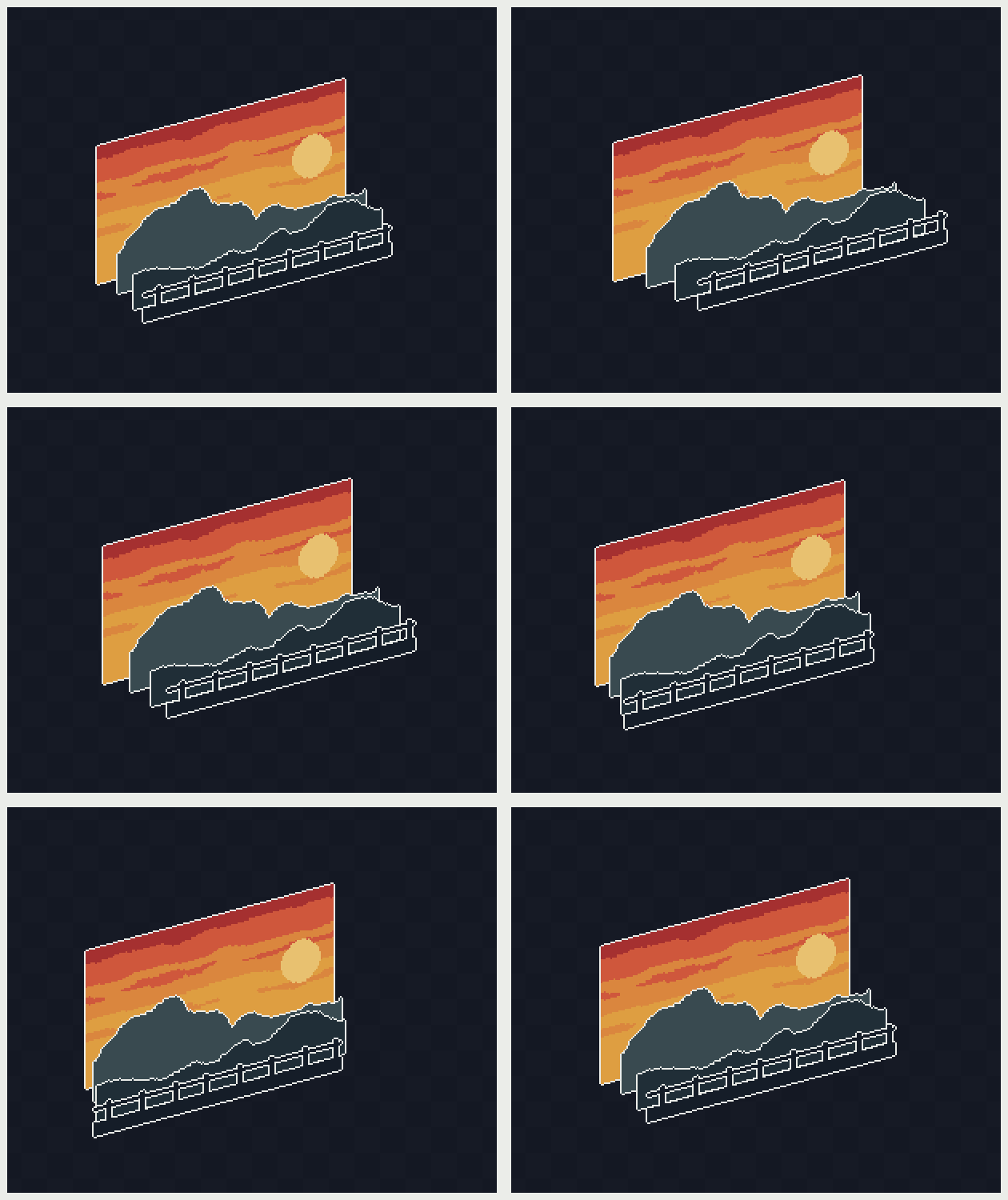
Devkidd’s Parallixel generates and previews parallax scrolling inside Aseprite. Use it to compare foreground and background movement and inspect seams in a scrolling loop.
Separate the background into clear layers, keep their canvas dimensions consistent, and tune their relative speeds. Then check the exported assets in your game engine with the actual camera movement, tiling, and display resolution.
Its listed regular price is also US$5; current discounts appear on the developer’s page.
Choose a tool for the asset stage you are working on
| Tool | Main task | Useful stage | Availability |
|---|---|---|---|
| Lospec Palette Importer | Find and save palettes | Establishing the project’s colors | Name your own price; MIT source |
| Magic Pencil | Outlines, brush effects, and pixel operations | Drawing characters and props | Name your own price |
| Isometric Guidelines | Create isometric guides | Preparing floors, walls, and buildings | Name your own price |
| Wave Warp | Generate wave animation | Water, flags, and effects | Paid |
| Parallixel | Preview parallax scrolling | Background motion and seam checks | Paid |
Set the palette and perspective rules first, create the static assets, then add animation and background motion. Keep the source files and exports for each stage so you can compare changes using the same assets.
Extensions can reduce repetitive work. You still need to check asset dimensions, colors, and animation in the finished game. Return to the development map when you are ready to test and launch it.